What to Expect at Your GLN Onboarding Call
The chauffeured transportation industry runs on trust. A client in New York books a transfer in Dubai. An operator in London hands off a VIP arrival in Tokyo. For that to work without a single point of failure, the operators involved need to know exactly what they are getting from each other. The GLN vetting process is where that standard is established.
Once you have completed your membership payment, a member of our team will guide you through the vetting process on a scheduled onboarding call. There is no form to fill out on your own. We go through everything together, in real time, so your profile can be built accurately and without delays.
This guide walks you through everything that will be covered during the call and what you need to have ready before it.
Before your call — prepare these documents
Please upload the following to your GLN document folder before your onboarding call. Having everything ready in advance will allow us to complete the session efficiently and move your profile to activation as quickly as possible.
-
- Company logo (JPG, PNG, or GIF)
-
- Minimum 4 professional photos of your operation or fleet
-
- Business license (number, expiration date, and document scan)
-
- Operating license permit (name, number, expiration date, and document)
-
- Municipal or regional operating licenses, if applicable
-
- Professional driver’s license or PSV license details
-
- US operators: MC Number, USDOT certificate, CDL details, Limo Carrier Registration (where applicable)
-
- Certificate of insurance with full vehicle schedule
-
- Workers’ compensation and employer’s insurance certificates
-
- Complete fleet details for every insured vehicle (make, model, year, license plate, passenger capacity, luggage capacity)
-
- Fleet photos organized by vehicle in a shared cloud folder (instructions in Section 11)
-
- Rate sheet in PDF format, all prices in USD
-
- Tax ID document
Fields marked with a red asterisk (*) are required. All others are optional — leave them blank if they do not apply to your operation.
What we will cover on the call
Our team will go through the vetting form with you section by section. Here is what each section covers so you know what to expect.
Section 1 — Company Information
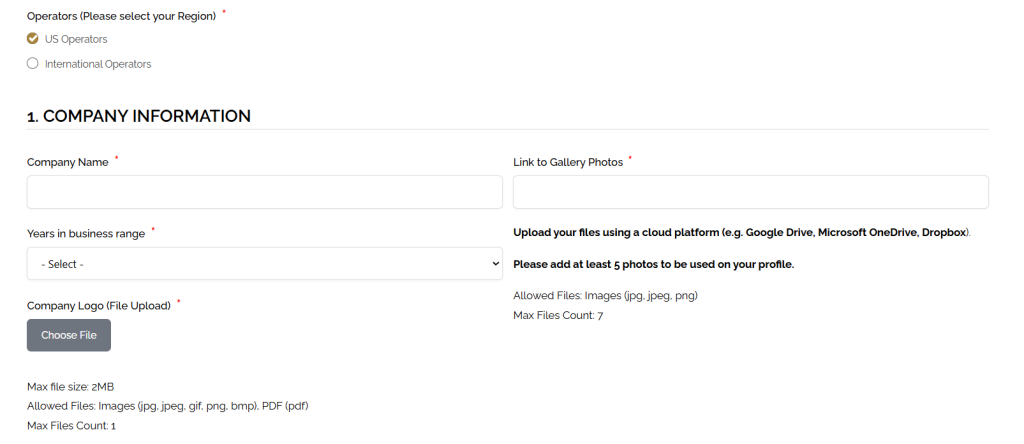
We will start by confirming your region and your company’s legal name exactly as it appears on your business registration.
For your logo, we will upload the file directly — accepted formats are JPG, PNG, and GIF.
For your company and fleet photos, we will use the link to your GLN document folder. Your folder must contain a minimum of 4 photos before the call. These will appear on your GLN profile — make sure they are clean, professional images that accurately represent your operation.
Section 2 — Company Preferred Communication
We will confirm the channel your dispatch team monitors most reliably around the clock. GLN partners will use this method when coordinating trips with you, so accuracy here directly affects how smoothly you collaborate within the network.

Section 3 — Type of Operator
We will confirm the category that accurately describes your operation: Limousine, Motorcoach, or Bus Company. This determines how your listing is classified in the network directory and how you appear in partner searches.

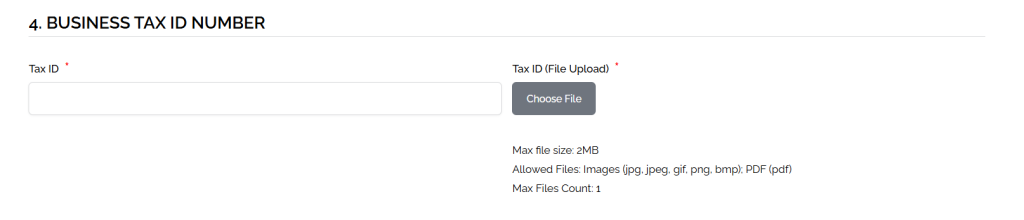
Section 4 — Business Tax ID Number
We will enter your Tax ID as issued by the relevant authority in your country and upload the corresponding document. Please have it ready as a PDF. Scanned copies are accepted provided they are legible and unaltered.
Section 5 — Licenses
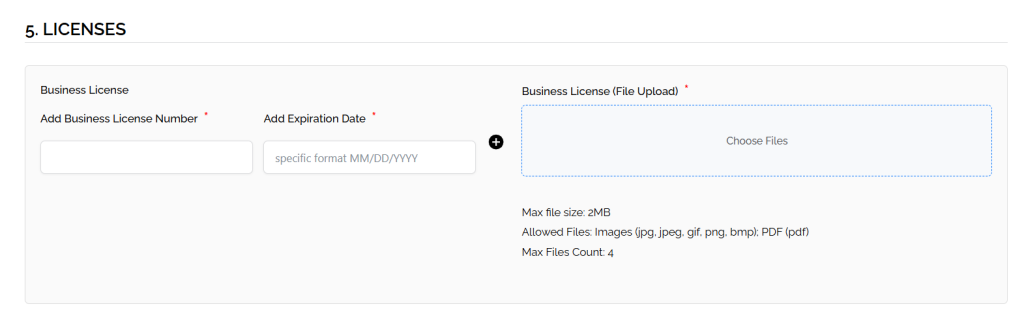
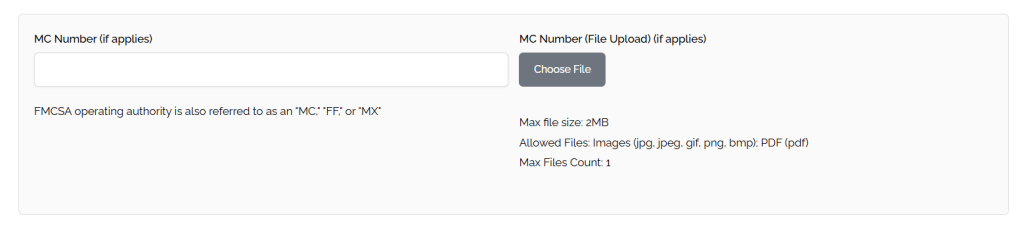
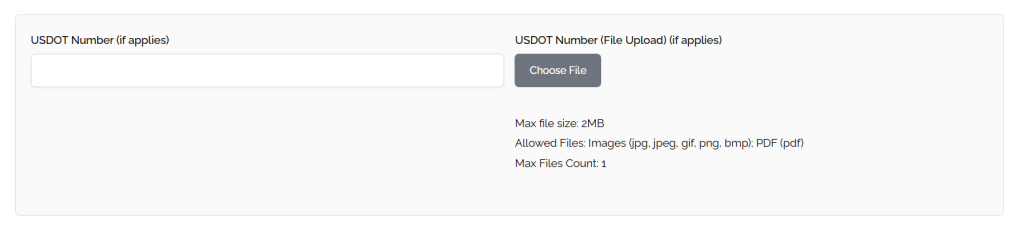
This is the most document-intensive section. All expiration dates must be entered in MM/DD/YYYY format — entries in any other format will not be accepted. Accepted file types for all uploads in this section: JPG, JPEG, GIF, PNG, BMP, PDF. Maximum 2MB per file, up to 4 files per upload field.
Business License – license number, expiration date, and document.
Airport Permit Number – permit number and corresponding document.

Operating License Permit – license name, number, expiration date, and document.
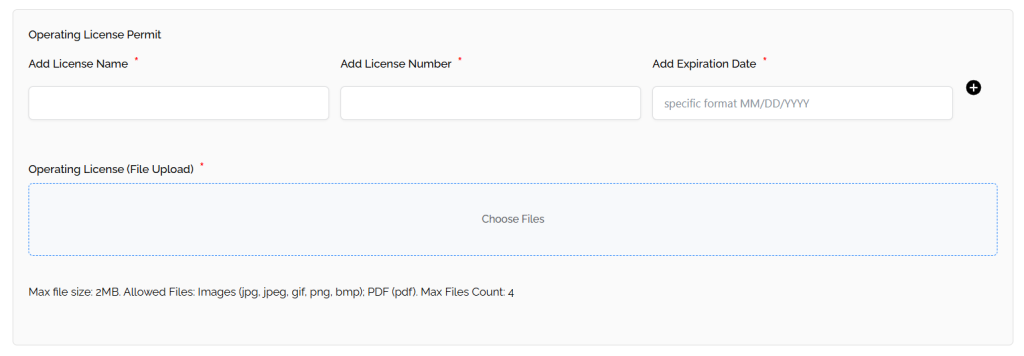
Municipal or Regional Operating Licenses – if your operation requires city- or region-level permits in addition to your main operating license, have each one ready. If none apply to your jurisdiction, this section will be left blank. (International operators only)

Professional Driver’s Operating License or PSV License – name, number, and expiration date for the driver’s license class applicable in your country or region. (International operators only)

US OPERATORS ONLY — additional fields
-
- MC Number — your FMCSA Motor Carrier number, if applicable. Upload supporting documentation.
-
- USDOT Number — required if you operate vehicles with a GVWR over 10,001 lbs or transport passengers commercially across state lines. Upload your USDOT certificate.
-
- Limo Carrier Registration — state-issued registration number and document, where required by your state.

If any of these do not apply to your specific operation, they will be left blank.
Section 6 — Insurance
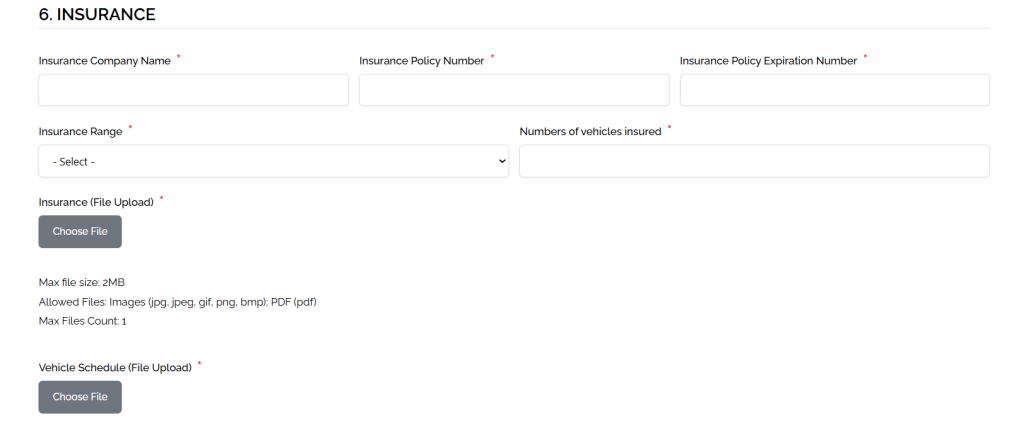
We will enter your insurance company name, policy filing number, and expiration date, and upload your certificate of insurance.
Your full vehicle schedule will also be uploaded as a separate file. The vehicles listed on your insurance schedule must match exactly the vehicles entered in Section 11. A mismatch between your insurance documentation and your fleet entries is one of the most common reasons a vetting review is delayed. Cross-check both before your call.
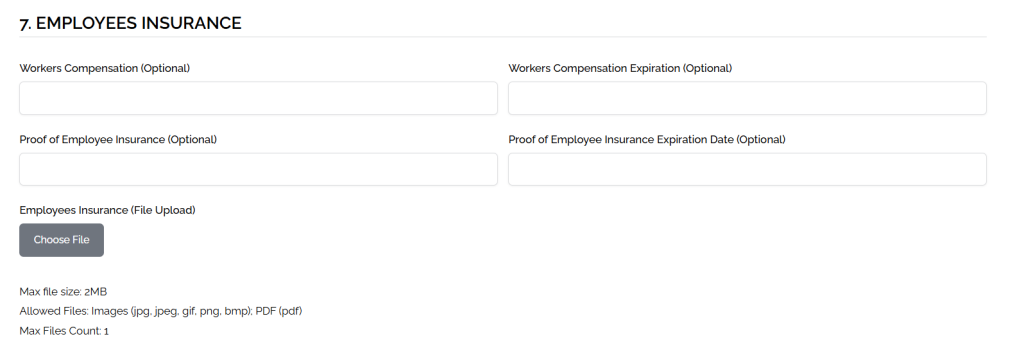
Section 7 — Employees Insurance (Optional)
If applicable, we will enter your workers’ compensation expiration date and upload proof of employer’s insurance. If workers’ compensation is not a legal requirement in your jurisdiction, have the equivalent employee liability coverage documentation ready instead.
Section 8 — Reservation Software(s)
We will confirm every dispatch and reservation platform your company currently uses. If your software is not listed, it can be entered manually. This helps GLN assess operational compatibility with network partners.
Section 9 — Dispatch
We will confirm your dispatch setup. GLN requires 24/7 dispatch coverage or a dedicated after-hours emergency contact number from all network members. Be ready to confirm exactly how your operation handles after-hours coverage.
Section 10 — Driver Live Updates
We will confirm the method your drivers use to provide live trip updates. When you execute a farm-out on behalf of a GLN partner, this is how they monitor trip progress in real time. Be ready to confirm the method your operation actually uses — not the one you intend to implement.
Section 11 — Fleet Information
We willevery vehicle you have insured on your vehicle schedule. For each vehicle, provide: Make, Model, Year, License Plate, Passenger Capacity, and Luggage Capacity.
Age requirements: Small vehicles must be no more than 5 years old. Large vehicles must be no more than 10 years old.
For example, if your onboarding call takes place in 2026, a small vehicle manufactured in 2020 does not meet the requirement and will not be entered. Vehicles outside these thresholds will not be approved during the vetting review. Please review your fleet against these standards before your call.
The vehicles entered here must match exactly the vehicles listed on your insurance schedule from Section 6.

Photos are shared via a cloud folder — they are not uploaded directly through the form. Set up your folder before you get to this section using the following structure:
-
- Create a main folder named: GLN & [Your Company Name]
-
- Inside it, create one subfolder per vehicle named: VEHICLE X (LICENSE PLATE)
-
- Inside each vehicle folder, upload:
-
- VEHICLE X (LICENSE PLATE) EXTERIOR.PNG — required
-
- VEHICLE X (LICENSE PLATE) INTERIOR.PNG — required
-
- Inside each vehicle folder, upload:
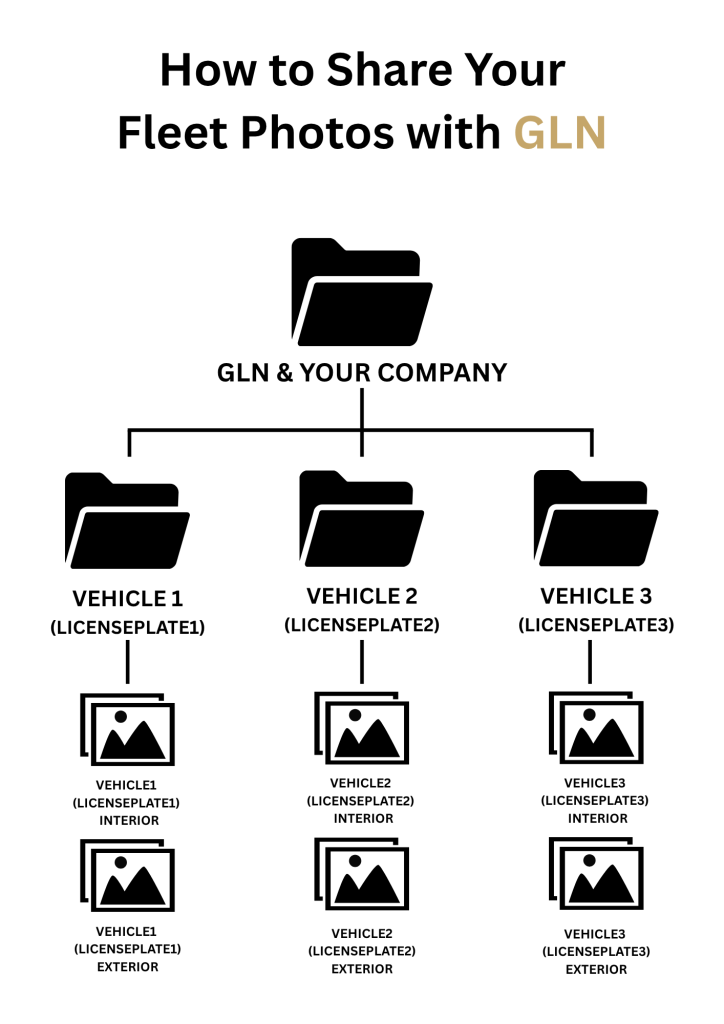
Every vehicle entered in the form must have a corresponding folder with both photos. Incomplete photo folders will be flagged during review. Set the folder’s sharing permissions to “anyone with the link can view” .
Section 12 — Pricing & Fees
All fields in this section are required. All amounts must be in USD, regardless of your country of operation. Do not prepare figures in your local currency — GLN uses USD as the standard across the network for partner pricing transparency.
Please have your rate sheet ready as a PDF (max 2MB) covering only the vehicles you own and operate.
For each fee field, have the value that applies to your pricing model ready. If a fee does not apply to your operation, it will be entered as 0.
The fields covered are: Gratuity (%), Peak Rate (%), Admin Fee (%), Fuel Surcharge (%), Extra Stop, Wait Time, Tolls, Meet & Greet Domestic, Meet & Greet International, Child Seat, International Pickup Fee (%), Smoking Fee, Airport Fee, Parking Fee, Cleaning Fee, and Travel Time.
Section 13 — Terms & Conditions
We will confirm that you have read and agreed to the GLN Terms and Conditions and Privacy Policy. Both documents are available via the links in this section and we recommend reviewing them before your call.
Document language requirement: All non-English documents submitted anywhere in this form must be accompanied by a certified English translation, or at minimum a professionally prepared English translation. Submissions with untranslated documents will be flagged and may delay your approval. Please prepare translations in advance if applicable.
What happens after your call
Once the onboarding call is complete, our team will review your documentation and vetting submission.
- Vetting Review — up to 72 hours Our team verifies all documentation and operational details against GLN standards.
- Profile Creation Once everything checks out, we build and publish your company profile.
- Network Access Once your profile is live, you will be able to:
- Be visible to vetted operators worldwide
- Search and connect with operators across the network
- Begin establishing professional affiliate partnerships
Please note that operators gain network visibility and access only after the vetting process has been successfully completed.
A note on Independent Operator Partners
If you work with independent operators outside your own fleet, GLN allows this — but each independent partner must be individually vetted and approved before you can assign GLN trips to them. This means each partner will need to complete this same vetting form and pay the applicable membership fee independently. There are no group submissions or blanket approvals. The same standard that applies to you applies to every operator executing trips within the network.